Pick a color from your screen
Grab a color from any pixel on your screen (another window, an app, a video or a design file) with your browser's built-in eyedropper. No extension, no download.
Press the button, then click anywhere on your screen (another window, an app, a video) to grab that color.I
Picked colors
Colors you pick show up here. Pick as many as you like. They stay here until you import or clear them.
Opens the editor and adds these colors as one group, with names, shades, contrast checks and code export.
How it works
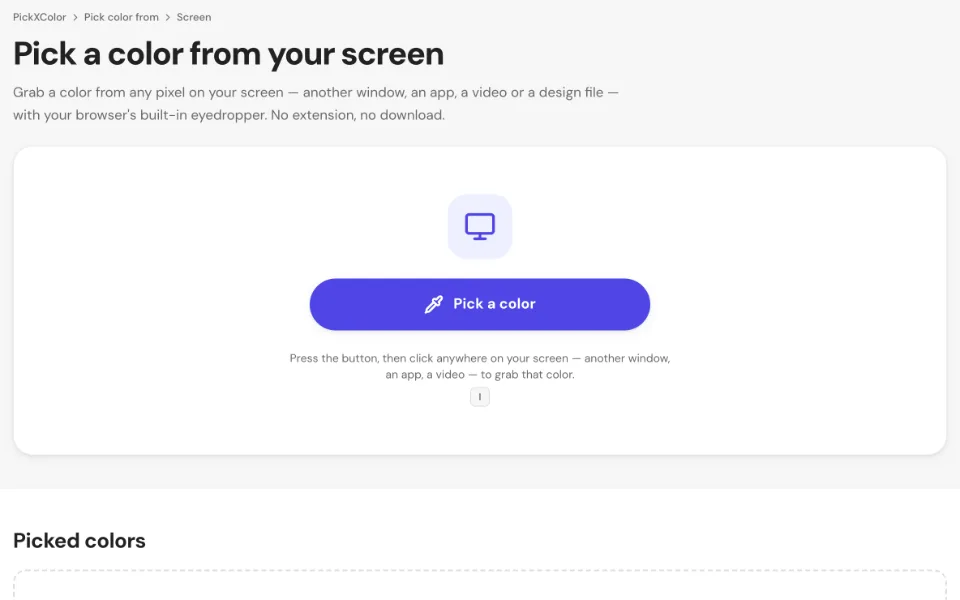
1Press “Pick a color”
Your cursor turns into an eyedropper with a magnifier. It works in Chrome, Edge, Opera and other Chromium browsers on computers.
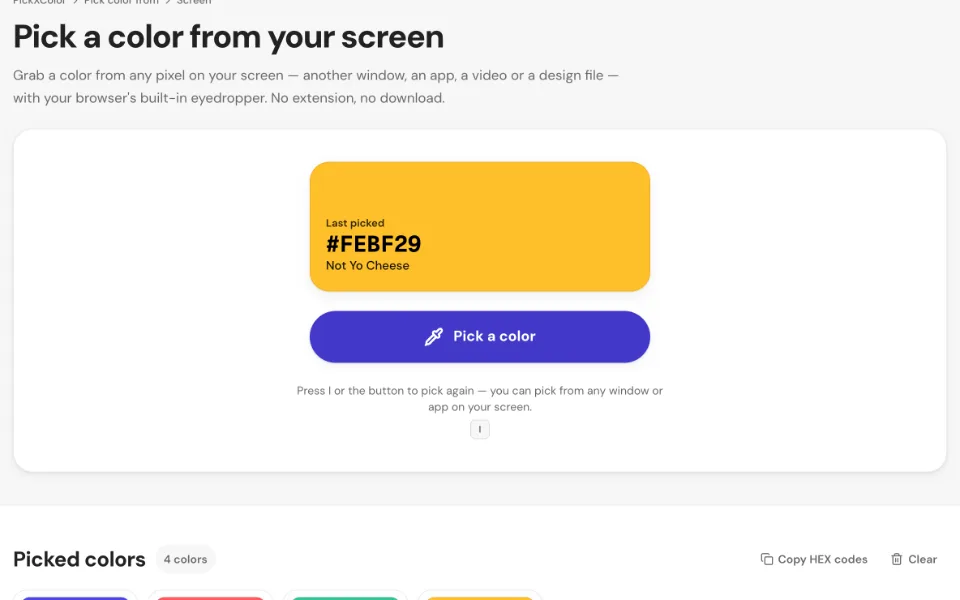
2Click anywhere on your screen
Move over any window, app, image or video and click the pixel you want. Press Esc to cancel. Pick again with the button or the I key.
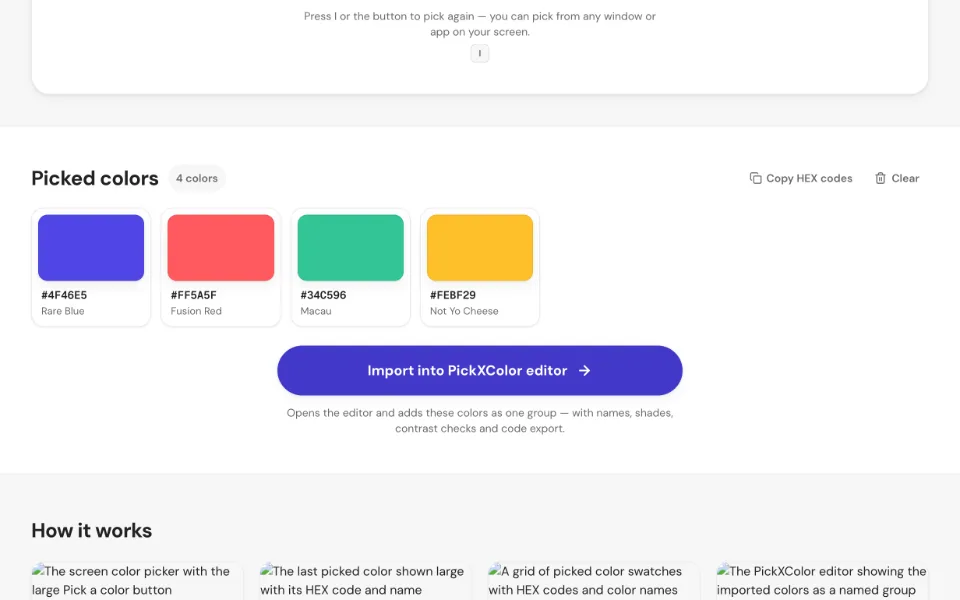
3Collect your colors
Every pick lands in the grid below with its HEX code and name. Pick as many as you like, copy them or remove the ones you don't need.
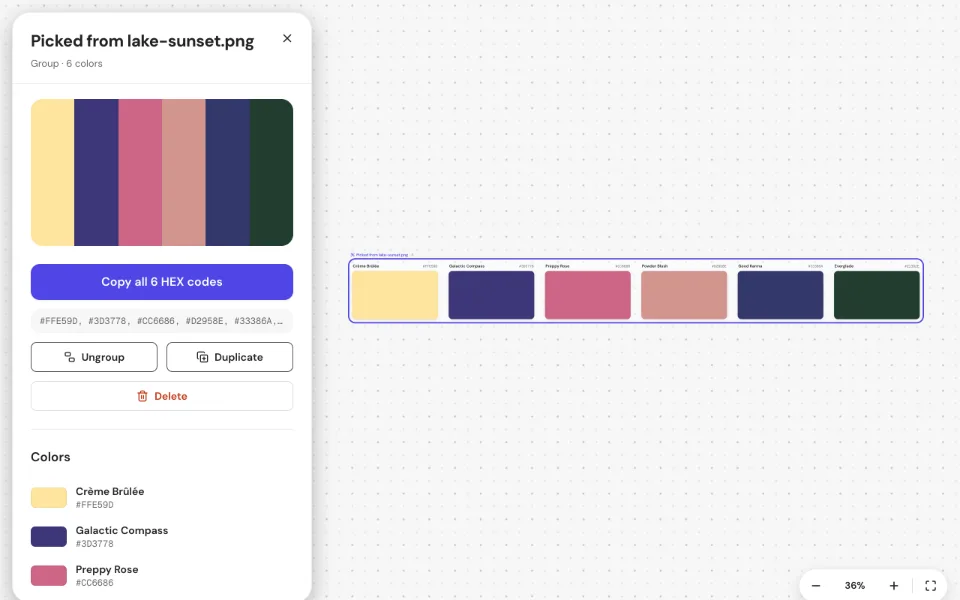
4Open them in the editor
Press “Import into PickXColor editor” to add all colors as one group, with names, shades, contrast checks and code export.
Frequently asked questions
Which browsers support picking from the screen?
The screen eyedropper uses the EyeDropper API, available in Chrome, Edge, Opera, Brave, Vivaldi and other Chromium-based browsers on Windows, macOS, Linux and ChromeOS. Safari and Firefox don't support it yet. There you'll see a “Download Chrome” button, or you can copy the link and open the page in a supported browser.
Why doesn't it work on my phone or tablet?
Mobile operating systems don't let websites read colors from the rest of the screen. Copy or share the link to open this page on a computer. Or take a screenshot and use the image tool, which works great on phones.
Is it privacy-safe and GDPR-compliant?
Yes. Your screen content is opened and processed entirely in your browser. It is never uploaded, stored or sent to a server, and we never see it. There's no account, no tracking and no cookies, and the tool pages don't load anything from third parties. Because none of your file data reaches us, there is no personal data from it that we could process.
The colors you pick are kept in your browser's local storage, so they survive a reload. Clear them with the Clear button or by deleting this site's data.
Is it safe to use?
Yes. The website never sees your screen: the browser shows the eyedropper itself and hands over only the single color you click: nothing else, and only after you click. Press Esc and nothing is shared at all.
Can I pick colors outside the browser window?
Yes. The eyedropper works across your whole screen, including other apps such as Figma, Photoshop, a PDF viewer or a video player, and on any connected display.
Why is the picked color slightly different from the design file?
The eyedropper reads the color as it's displayed. Color profiles, night-shift modes, HDR and the app's own color management can shift it slightly. For exact values, open the original file with the image, PDF or SVG tool instead.
What can I do with the picked colors?
Copy all HEX codes at once, or press “Import into PickXColor editor”. The editor adds them as one named group on an infinite board, with human color names, HEX, RGB, HSL, OKLCH and CMYK values, Tailwind-style shades, WCAG contrast checks and code export for CSS, Tailwind, SCSS, Swift and Jetpack Compose.
Is it free?
Yes. It's free with no sign-up, no watermark and no limit on how many colors you pick.
More ways to pick colors
Every tool runs in your browser and adds to the same picked colors.
- ImagePhotos, screenshots and logos: PNG, JPG, WebP, HEIC and more.
- PDFBrand guides, brochures and reports, with the exact colors they use.
- WebsiteShare a tab or drop a screenshot to get any site's colors.
- VideoPause on any frame of an MP4, MOV or WebM and pick.
- CameraPoint your phone or webcam at anything in the real world.
- SVG & IllustratorLogos and icons: every fill, stroke and gradient color.
- Office documentsTheme and document colors from Word, PowerPoint and Excel.
- Color pickerChoose a color and get HEX, RGB, HSL, OKLCH and CMYK.
- HSL pickerHue and saturation wheel with a lightness slider.
- HSB pickerHue ring around a saturation and brightness square.
- Color wheelSpin a wheel to pick a random color.
- Any fileDrop any file and we open the right tool.
- Color picker boardThe PickXColor editor: collect, name, group and export colors.